Cameras & Displays
This feature allows you to place cameras on your aircraft that can be viewed through screens.
One-to-One: Advised for mirrors, periscopes or screens which don't need to change between cameras.
One-to-Many: Advised for screens that can switch between many cameras.
A handy video
Filters
| Filter | Tag |
|---|---|
| No filter | None |
| Nightvision filter | NVG |
| Black & White filter | BW |
| Thermal filter (*essentially inverted BW) |
THR |
Cameras
Cameras can be any object, however I generally advise using a cube. Then set the name following this format:
:Camera:yourID:near,far:fov:filter:
- Change 'yourID' with whatever unique ID you want the camera-screen link to have.
- 'Near' & 'Far' refer to the clipping/rendering distance in meters. I recommend somewhere around 0.01 to 1000
Values too high may lead to performance loss.
- 'fov' refers to Field of View, in super simple terms, you can see it as how much the camera is zoomed in.
- 'filter' refers to the visual effect on the screen. For example, the nightvision filter will help seeing in the night due to its brightness.
Examples
If you are still confused, these examples should help clear up any confusion.
Basic camera :Camera:cam:0.01,15000:70:none:
Non-intensive mirror :Camera:mirror:0.01,500:50:none:
Nightvision FLIR pod :Camera:flirNVG:0.01,6000:30:NVG:
One to One Display
Simplest form of display
:Display:yourID:resX,resY:
- Change 'yourID' to match whatever camera's ID you want it to display.
- 'resX' (width) and 'resY' (height) refer to the screen's resolution (measured in pixels)
The larger the display, the less performant.
It is worth noting how much of your screen's pixels your screen will actually take up.
Examples
Basic low-res square screen :Display:cam:380,380:
Wide mirror :Display:mirror:700,200:
Detailed FLIR screen :Display:flirNVG:1000,700:
One to Many Display
If you want your display to change between cameras.
First, figure out a generic ID / master ID, such as externalCamera
Create a custom input with the name followed by Master
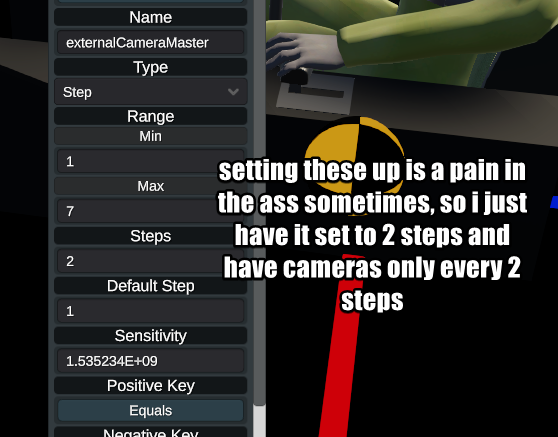
Then whatever the value in-game is set to, it will look for the generic ID + the value of the input.

The above will look for the camera assigned to externalCamera4 and set the display to it.
Turning off the screen
One-to-Many displays can be turned off by setting their value to zero, in the future this will set the texture to black, for now it freezes the screen.