Custom Material Handling
This section covers both Custom Parts and World Objects.
Custom Textured Materials
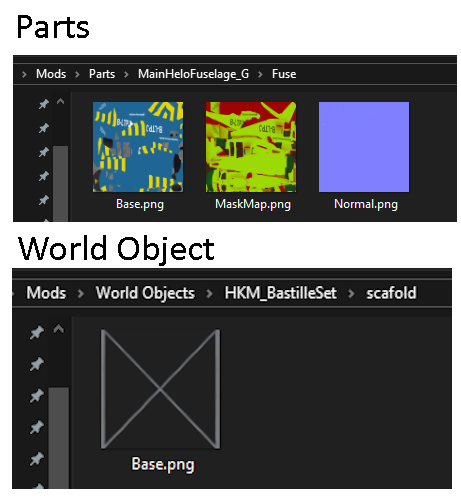
In Flyout's Appdata Directory / Mods folder
For world objects Go to World Objects / then to your world object / and create a folder named after the material.
For custom parts Go to Parts / then to your part / and create a folder named after the material.
Contents
Base.png - This is your main texture, if this file doesn't exist, the mod will take it from your original material.
(Optional) MaskMap.png - This unity article explains how a MaskMap is constructed (substance can export it directly)
(Optional) Normal.png - This is your normal texture.
Next, you want to name the appropiate meshes that you want to get the material in your 3d modelling program of choice.
| Mi8 Keyword (on mesh) | WOE Keyword (on mesh) | Usage |
|---|---|---|
| :PC:yourFolderName: | :C:yourFolderName: | Regular Custom material, mainly for MaskMap and |
| :PCA:yourFolderName: | :CA:yourFolderName: | Alpha Cutout, good for: Trees |
| :PCO:yourFolderName: | :CO:yourFolderName: | Opacity, good for: Parts with varying transparency |
| :CV:yourFolderName: | Vegetation (WIP, use PCA instead.) |
Non-Textured Materials
Temporarily WOE exclusive: Will be available to Custom Parts in the future.
| Keyword (on mesh) | Usage |
|---|---|
| :CE:intensityNumber: | Emissive Material, grabs current material's colour and creates a new material with same colour but emissive. |
| :Translucent:R:G:B:A: | Translucent Material, requires Red, Green, Blue and Alpha values. (0-255) |
| :Water: | Water Material, UV-size dependent so you have to mess around with that. |
| :FT_S:tileName: | Terrain Material, *to be replaced with a better solution in the future. |